
Save game error

A save game error has occurred.
Save game errors are errors which prevent the player from saving their game. In theory, they can occur in all games in The Sims series, but occur most frequently in The Sims 3 and The Sims Medieval. This article will only focus on errors in The Sims 3 and The Sims Medieval.
List of errors[]
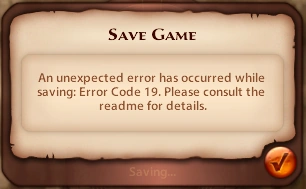

Error Code 19 in The Sims Medieval.
- No save file information.
- No active world.
- The save path is empty.
- Cannot save directory.
- Cannot find the requested file.
- Invalid save file length.
- File name is invalid
- File path length is too large.
- Failed to create header record.
- Failed to write header record.
- Pre-save callback failure.
- World file save failure.
- Post-save callback failure.
- No load/save manager found.
- Open failure
- Loose file copy failure
- Other error. Sorry.
- Custom content installed in game has not been updated for current patch/EP
See the 'readme' file for your games for additional information.
Fixing the errors[]
When experiencing an error, try cancelling your Sims' actions and save again.
The easiest way to avoid this problem is to 'Save As' on a different game file each time instead of 'Save'. This reduces the chance of losing unsaved data due to an error or a save breaking due to file corruption, and reduces the save's chances of becoming bloated. It also creates a backup save of sorts, and repeatedly using different names will leave behind a history of saves, useful for reliving glory days, or reverting to an older save to undo a glitch or mistake you didn't catch earlier.
The Sims 3 creates an automatic backup of your old saved game now, everytime you save your game normally.
The error may be caused by overcrowding on a lot, which may be remedied by Editing the Town, moving the offending lot, then placing it back in its original location, thus resetting the lot. [citation needed]
If the error persists, additional remedies may be needed, at the risk of the user. Users should be cautious when employing suggested remedies, as altering files may possibly cause irreversible damage to a saved game file or to the game itself. It is highly encouraged that the user make a backup of their data before attempting to fix the problem using any suggested solutions.
World Adventures[]
Error 12, 13, or 16 specifically were widely encountered after installing World Adventures. The bug is officially known as "Error code 16 bug" by EA.[1] The errors were due to a change in the file structure used to store saved games.
Patch 7 came out fixing this problem and the subsequent Patch 8 added an auto recovery prompt to recover save games previously corrupted. EA has supplied a solution for restoring corrupted saved game files.[2]
Error 12[]
The arguably most commonly encountered error in fully patched savefiles is Error 12, also known as Error Code 12. The error code's official explanation in EA's documentations is "World file save failure". Players can continue to play that session, but (usually) cannot save at any later point in that session, but is however able to save community lots to the lot bin, created Sims to the Sim bin, and items to collections.
It can happen for various reasons:
- Running out of RAM. On Windows, The Sims 3 is a 32-bit program with "Large Address Aware" support, theoretically allowing the game to use up to 4 GB of RAM. When the game approaches that limit, it becomes increasingly more likely to crash to desktop.
- At least one game mod exists that attempts to reduce pressure on the RAM use by 0.1~0.15 GB, on the unconfirmed presumptions that the game loads unused placeholders when launching the game, and/or that the game fails to clean up savefile loading screen backgrounds from the cache after the savefile has been loaded.
- Graphics render cache overload. The Windows version of The Sims 3 does not necessarily clean up loaded textures automatically. As the cache fills up, the game first begins throwing Error 12, then sometimes (but far from always) shows broken textures in Buy/Build Mode, then crashes to desktop.
- If the overload has not reached a critical state at the time, it is possible to force a texture cache refresh by changing at least one of the graphics game options. If successful, it becomes possible to save correctly, and in some cases even continue playing that session. If it fails, it crashes to desktop.
- Urn corruption. Under unclear circumstances, individual urns can sometimes become partially corrupted. For instance, moving a corrupted urn with cursor-dragging will single-handedly cause Error 12. Fixing it is complicated enough that players should check the "Avoiding corruption" guide on how to do it.
- Savefiles' filesizes can become bloated over the course of 10 play session or so. For larger savefiles, especially ones where players have visited all 5 sub-worlds at least once each, can get to over 300 MB, which can noticeably lengthen saving and loading times, and potentially contribute to RAM/render overloads.
- The software tool Regul SaveCleaner, and the (as of August 7, 2025 outdated) Game guide:Reducing the size of a saved game guide, are often used to remove Sim/lot portraits that are automatically generated during gameplay (Create-a-Sim family portraits, relationship panel portraits, etc.).
In consoles[]
In the PS2, Nintendo GameCube and PSP games, save errors can happen. Usually this happens if the memory card is removed, if the memory card does not have enough space, if there is something wrong with the memory card, or if there is no memory card inserted. Should the card be removed, the original Sims data would then be corrupted.
Save errors can also occur on the Xbox 360, PlayStation 3, and Wii if there is not enough space on the system.